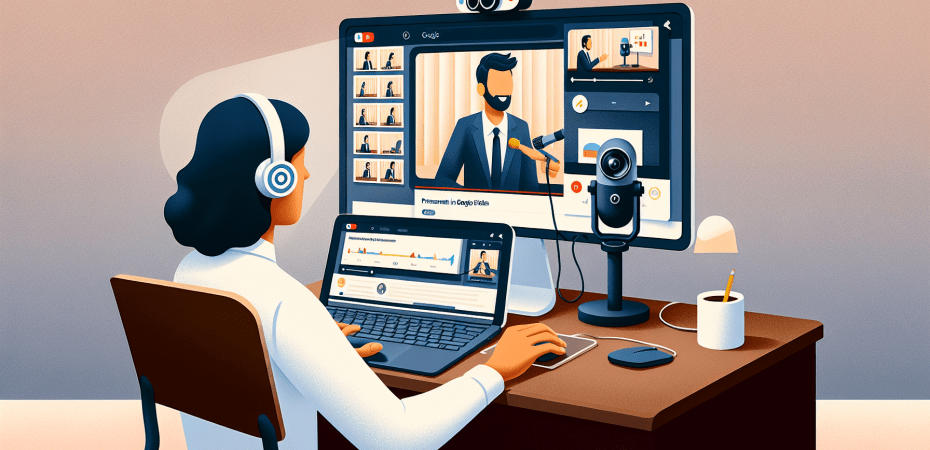
Google just released a new feature in Google Slides that allows users to record audio and video while they present their slideshow. This is a game-changer for teachers who want to create content for a flipped classroom or for mastery learning.
To get started with this feature:
- Create a slideshow in Google Drive or by visiting http://slides.new
- Ensure that you have a webcam with microphone connected to the computer you wish to use
- When you have created your slideshow and are ready, click the Record button at the top right of your slide deck
- Use the tools to change the position of your Picture In Picture video
- click record
- when finished, click stop – your video will be saved to Google Drive
- You can then share your video in Google Classroom or anywhere you’d like
You can also learn more by watching the video below.
 The Techy Coach
Is this rolled out yet? I don’t see it as an option for me.
LikeLike
This may be a Google for Work or Workspace update and may require an additional fee from your district.
LikeLike